
HTML is a standard client-side markup language used to create web pages and web applications, using CSS and JavaScript. Web browsers receive HTML documents from a web server or local computer system and convert them into multimedia web pages. HTML elements describe the structure of a web page and essentially contain tags for the appearance of the document.
Several versions have been released so far, with html5 being the latest version.
The structure of HTML tags is as follows:
<tag>
  ...
</tag>
For example:
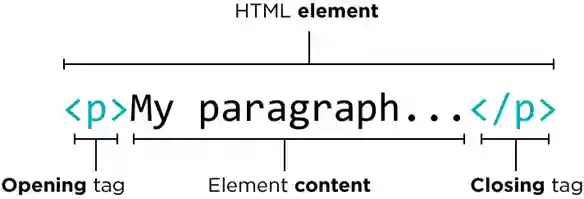
The element name goes between the opening and closing characters, and the content goes inside the tag. HTML tags are usually placed in pairs like
and </ p>. The first tag in a pair is the opening tag, the second is the closing tag. The closing tag is like the opening tag but preceded by the tag name. Sometimes they are used in the form </> and are called self-closing, for example:
<input />
In HTML5, the trailing slash is optional. The structure of an html file is as follows:
<!DOCTYPE html>
<html lang="en-US">
   <head>
      <title>Page title</title>
      <meta charset="utf-8" />
      <meta name="viewport" content="width=device-width,initial-scale=1.0" />
      <link rel="icon" type="image/x-icon" href="img/favicon.ico" />
      <link rel="stylesheet" href="style.css" />
   </head>
   <body>
      <!-- page contents goes here -->
      <script type="text/javascript" src="js/script.js"></script>
   </body>
</html>
Tags
Comment
To insert comments in an HTML document1, the following tag is used, and the text inside it will be completely ignored:
<!--
function displayMsg() {
  alert("Hello World!")
}
//
displayMsg();
-->
Doctype
Since the web has many browsers and many versions of them, and since browsers do not yet fully support the new HTML5 features, we must inform the browser that our page is an HTML5 document using the doctype declaration.
<!DOCTYPE html>
html
The html tag represents the root of an HTML document, and all other elements must be placed inside it. Usually the lang attribute is also specified on it to declare the page language to the browser and search engines.
<html lang="en">
   ...
</html>
head
Contains the site's metadata2 — including the page title, styles, scripts, and other information that defines the relationship between the document and external resources.
title
The page title that is also displayed on the browser tab. In SEO3, this title is very important and affects the arrangement of results produced by search engines, and when displayed in search results, it shows this same title. When the site is added to the user's favorite bar, this is used as the default name.
base
Specifies the base URL for all relative URLs in the document. There can only be one base tag in a document.
<head>
   <base href="https://www.w3schools.com/" target="_blank">
</head>

<img src="images/stickman.gif" />
link
Defines the relationship between the current document and an external resource. It is most commonly used to link to stylesheets.
<link rel="stylesheet" href="styles.css">
Meta
Defines metadata such as character encoding, viewport settings, page description, and keywords. Search engines and browsers use these values.
<meta charset="UTF-8">
<meta name="description" content="Free Web tutorials">
<meta name="viewport" content="width=device-width, initial-scale=1.0">
Body
Defines the document's body. All visible page content — headings, paragraphs, images, links, tables, lists, and so on — goes inside this tag.
a (Anchor)
Used to create links. Using the href attribute, the destination address is specified for the link. The text between the opening and closing tags is displayed as the link text. If no href value is specified, the tag is only a placeholder for a link.
If the destination is on the same site, we use #:
<a href="#section2">Go to Section 2</a>
<p>In my younger and more vulnerable years</p>
<h2 id="section2">Section 2</h2>
<p>In my younger and more vulnerable years</p>
It can point to the ID of one of the page elements.
If we use an empty #, it takes us to the top of the page.
An Anchor can also be used for phone calls via VoIP software on the visitor's system:
<a href="tel:+982191000000">1000000</a>
<a href="tel:+982191000000">1000000</a>
It can also be used to send an email:
<a href="mailto:mjid.ahmadi@gmail.com?subject=Hi Majid&body=Hello dear, How are you following table demonstrates preprices we can deal">Send Email to Majid</a>
<a href="mailto:mjid.ahmadi@gmail.com?subject=Hi Majid&body=Hello dear, How are you following table demonstrates preprices we can deal">Send Email to Majid</a>
There is another property called download that tells the browser to download the destination as a file.
<a href="path/to/file.pdf" download="new_file_name.pdf">Download File</a>
(Optional) The name assigned to the downloaded file. If this value is not provided, the browser uses the original file name.
By default, a link has three general states:
- A link that has not been clicked (underlined with blue color)
- A link that has been clicked (underlined with purple color)
- The moment of clicking a link (underlined with red color)
When the mouse hovers over a link, the cursor typically changes to a pointer icon (👆), though this may vary depending on the operating system and theme.
Other elements can be placed inside an <a> tag. For example, clicking the image below will open the link.
h (Headings)
HTML headings are defined with the tags <h1> to <h6>. <h1> defines the most important heading and <h6> defines the least important heading. Search engines use headings to understand the structure and content of the page, so correct and hierarchical use of them is very important.
<h1>Heading 1</h1>
<h2>Heading 2</h2>
<h3>Heading 3</h3>
p (Paragraph)
Defines a paragraph. Browsers automatically add a blank line before and after each paragraph.
div
A container for grouping other HTML elements. It has no meaning of its own and is used for layout and styling purposes. It is a Block-level element, meaning it occupies the entire available width and starts on a new line.
span
An inline container used to mark up part of a text or part of a document. Like div, it has no meaning of its own and is used to apply styles to a part of the text.
bdi4
Bidirectional Isolation. Used to isolate part of the text that may be displayed in a direction different from the text around it — for example, when a username with a different writing direction is placed inside Persian text.
<ul>
   <li>User <bdi>hrefs</bdi>: 60 points</li>
   <li>User <bdi>jdoe</bdi>: 80 points</li>
</ul>
Semantic Tags
Semantic tags clearly describe their meaning to both the browser and the developer. Elements like header, nav, main, section, article, aside, and footer are among these tags.
Site designers and programmers divide the page into several sections using the header, main, and footer tags, and each section into sub-sections using the section tag. These tags also serve as containers like Div. Like Div, they are also Block-level elements. The difference is that Div is created to make a parent container with several children, while these tags are used to separate semantic sections of the site that have meaning5
| Tag | Use |
|---|---|
header |
The page header, which usually contains the logo and main title of the site. |
nav |
Used for menus and navigation6 on the site. |
main |
The main content of the page, which must be unique and not repeated inside other semantic tags. |
section |
A thematic section of the page, which usually also has its own heading. |
article |
Independent, self-contained content such as a blog post or news item. |
aside |
Side content that is indirectly related to the main content. |
footer |
The page footer, which usually contains contact information, links, and copyright. |
ol-ul-li (Lists)
ul stands for unordered list, meaning an unnumbered list. This tag is used to create lists. Items can be added to this list using the li tag. For numbered lists, the ol tag is used. For items like menu items on a site, ul is used.
table
Used for drawing tables. Each table has two types of cells: data and header, which are specified with two tags <td> for table data and <th> for table header. These two types of cells must be placed in a row specified by <tr> (table row).
dl dt dd
dl stands for description list, a list of descriptions. Along with dt, meaning definition term, and dd, meaning definition description, it is used to add descriptions about each item.
<dl>
    <dt>Coffee</dt>
    <dd>Black hot drink</dd>
    <dt>Milk</dt>
    <dd>White cold drink</dd>
</dl>
<dl>
    <dt>Coffee</dt>
    <dd>Black hot drink</dd>
    <dt>Milk</dt>
    <dd>White cold drink</dd>
</dl>
By styling it, the concepts can be explained better to the visitor:
    dt {
        font-weight: bold;
    }


    dl,
    dd {
        font-size: 0.9rem;
    }


    dd {
        margin-bottom: 1em;
    }
<dl>
    <dt>Beast of Bodmin</dt>
    <dd>A large feline inhabiting Bodmin Moor.</dd>


    <dt>Morgawr</dt>
    <dd>A sea serpent.</dd>


    <dt>Owlman</dt>
    <dd>A giant owl-like creature.</dd>
</dl>
<dl>
    <dt>Beast of Bodmin</dt>
    <dd style="margin-bottom: 1em;padding-left: 2rem;font-size: 0.9rem;">A large feline inhabiting Bodmin Moor.</dd>


    <dt>Morgawr</dt>
    <dd style="margin-bottom: 1em;padding-left: 2rem;font-size: 0.9rem;">A sea serpent.</dd>


    <dt>Owlman</dt>
    <dd style="margin-bottom: 1em;padding-left: 2rem;font-size: 0.9rem;">A giant owl-like creature.</dd>
</dl>
Text Formatting
These tags only change the appearance of text and have no special meaning.
Phrase Tags
HTML phrase tags are designed for specific purposes and define part of the text semantically. For example, they have special meaning for a search engine or screen reader.
strong
The strong tag, which falls under phrase tags, is used to mark text or content as important. Its visual output is like the b tag used for bolding text, but it also has a different function. When we have important content and want to tell search engines to give special attention to this content or keyword, we use the strong tag, and when our content is not important and we just want to make it bold, we use the b tag. The strong tag is important for site SEO.
code
The code tag is used to define a piece of code (usually computer code) within a web page.
pre7
Used to display text exactly as written, with the same spacing and formatting.
Text inside <pre> 8 is displayed with a fixed-width font (like Courier).
var
The var or Variable tag, which falls under phrase tags, is a tag used to define or create variables in a web page. If you are familiar with programming languages, you know what variables are; if we want to put those same variables in a web page, we must use the var tag.
kbd
The kbd tag, short for Keyboard Input, falls under phrase tags. Using it, a keyboard input can be placed in a web page.
samp
The samp tag, short for Sample Output, is used to display the output of a program or computer system.
abbr
Defines an abbreviation or acronym9. Using the title attribute, the full meaning of the abbreviation is displayed to the user when hovering over it.
mark
Defines marked or highlighted text. The browser usually displays this text with a yellow background color.
dfn
Stands for definition. Used to introduce the defining instance of a term — that is, the place where a new term is defined and explained.
blockquote - cite - q
Used to quote a long text from another source. The q tag is used for short, inline quotations, and cite specifies the title of a work.
address
Defines the contact address of the author or owner of the document or article. It is usually displayed in italic.
em
Stands for emphasis. Used to emphasize text, which is usually displayed in italic by the browser. Unlike the i tag, it carries semantic meaning.
img (Image)
Used to insert images into the site. Since it has no content inside, it is considered a void element10 — meaning it has no closing tag (</img>).
figure
The <figure> element in HTML represents self-contained content that may have an optional caption specified using the <figcaption> element.
area
Using this tag, clickable areas can be created within an image.
audio
Used to insert an audio player into the page.
video
Used to display a video player:
The controls attribute causes the video controls to be displayed on the player. Autoplay, muted, and poster are other options that can be used. Poster is the cover image of the video before it starts playing.
A property called preload can be used in this tag that determines whether video loading starts after the play button is pressed or begins caching the video simultaneously with the page opening.
iframe4
Used to display another site within our site, in a frame with specified dimensions:
Form Elements
HTML forms are used for collecting and sending form information to the server.
Between various HTTP methods, in the GET method, information is sent as a Query string after a question mark in the address bar, while in the POST method, information is not visible.
The datalist element provides a list of predefined options for an input field, so that the user can select from them or type a new value. The fieldset element is used to group related form fields and the legend tag specifies a caption for that group.
details
Used to insert expandable details for a title.
<details>
   <summary>Epcot Center</summary>
   <p>Epcot is a theme park at Walt Disney World Resort featuring exciting attractions, international pavilions, award-winning fireworks and seasonal special events.</p>
</details>
dialog
Defines a dialog box or window. Using the open attribute, the dialog is displayed, and with JavaScript's showModal() method it can be shown as a modal dialog.
<dialog>
   <p>Greetings, one and all!</p>
   <button>OK</button>
</dialog>
SVG
SVG stands for Scalable Vector Graphics. It is a language for defining vector-based graphics in XML format, which can be scaled to any size without losing quality. The following elements are used to draw shapes:
circle
Used to draw a circle. The cx and cy attributes specify the center point and the r attribute specifies the radius of the circle.
rect
Used to draw a rectangle. The x and y attributes specify the top-left corner and the width and height attributes specify its dimensions.
polyline
Used to draw a shape made of connected straight lines. The points are specified in the points attribute as pairs of coordinates.
path
The most powerful element for drawing paths and complex shapes. The path is defined with commands like M (move to), L (line to), C (curve), and Z (close path).
Methods of using SVG
SVG code can be used in a page in three ways: inline inside the HTML document, through the img tag pointing to an .svg file, and as a CSS background image.
Canvas
The canvas element is used to draw graphics on the fly using JavaScript. Unlike SVG, which is vector-based, Canvas is pixel-based and is suitable for animations, games, and real-time image processing. SVG is resolution-independent, but Canvas must be redrawn when the size changes.